Email Says the Attachment Is Too Large: Why 25 MB, and What to Use Instead
You attach a 22 MB file to an email with a “25 MB limit” and it is rejected. The number was not a lie; it was measuring something different from what you were. This article explains where the ceiling comes from, why it is smaller than it looks, and what to do when the file will not fit.
Email cannot carry binary files, so it dresses them up
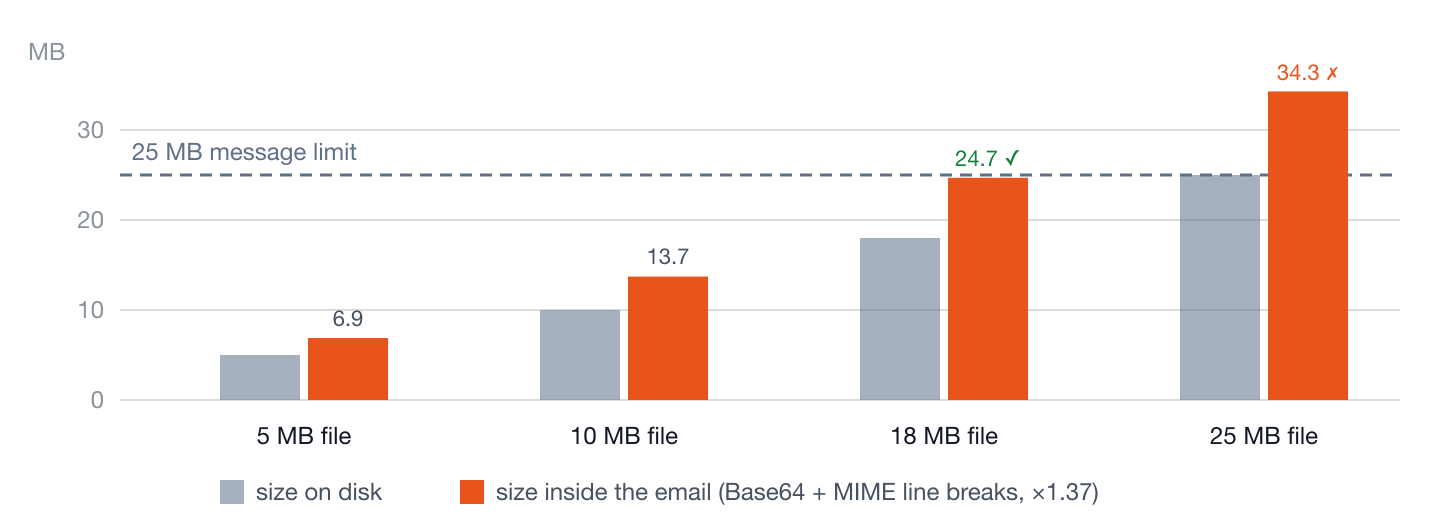
Email was designed in the era of 7-bit text. Every byte of a message had to be a printable character. Attachments came later, bolted on by MIME, and the way MIME carries a binary file is Base64 encoding: every 3 bytes of the file become 4 characters of text. That is a fixed 33% size increase before anything else happens. MIME then breaks the text into lines of at most 76 characters, each ending in a two-character line break — another 2–3%. A file grows by roughly 37% between your disk and the message.
The limits are on the message, not the file
Providers publish a maximum message size, and the message includes the encoded attachment, the headers, and the text. So the practical attachment ceiling is the published limit divided by about 1.37:
| Provider (published limit) | Real attachment ceiling | What happens above it |
|---|---|---|
| Gmail (25 MB) | ≈ 18 MB | Attachment is uploaded to Google Drive and replaced with a link |
| Outlook.com (20 MB) | ≈ 14 MB | Prompted to upload to OneDrive and send a link |
| iCloud Mail (20 MB) | ≈ 14 MB | Mail Drop uploads to iCloud and inserts a link (up to 5 GB) |
Two more constraints hide behind the sender's limit. The recipient's provider has its own cap — a message that leaves Gmail can still be bounced by a corporate server with a 10 MB rule. And mail is store-and-forward: the encoded message is copied to the sender's Sent folder, the recipient's inbox, and every relay in between, so a 20 MB attachment costs the system many times that in storage. The small limits are not stinginess; they are what keeps mail cheap and fast.
Base64 by hand: three bytes in, four characters out
The encoding takes each group of three bytes, 24 bits, and rewrites it as four characters of six bits each, drawn from an alphabet of 64 printable characters. The word “Man” is three bytes; encoded it becomes TWFu, four characters. Every three bytes of a file cost four characters, which is the 33.3%. MIME then insists on lines no longer than 76 characters, each ended by a two-character line break: 78 characters transmitted for every 76 of content, another 2.6%. Multiply the two and a file grows by a factor of about 1.37 on its way into a message. A 20 MB attachment is 27.4 MB of email.
The limits, at more providers
| Provider | Published message limit | Practical attachment ceiling |
|---|---|---|
| Gmail | 25 MB | ≈ 18 MB |
| Outlook.com | 20 MB | ≈ 14 MB |
| iCloud Mail | 20 MB | ≈ 14 MB |
| Yahoo Mail | 25 MB | ≈ 18 MB |
| Proton Mail | 25 MB | ≈ 18 MB |
| Exchange Online (work) | 25 MB by default; administrators can raise it | ≈ 18 MB unless IT says otherwise |
Figures are the providers' published limits at the time of writing; check the help page for yours. Corporate systems are the wild card: a company can set its limit anywhere from a few megabytes up, and the recipient's company may have set a smaller one than yours.
Where the seven-bit rule came from
The email standards of the early 1980s defined a message as lines of US-ASCII text, seven bits per character, because that was what the networks and terminals of the day carried reliably. Attachments arrived a decade later, in 1992, with MIME: a way of labelling parts of a message and encoding binary content into that seven-bit text world. The design was deliberately backwards compatible: an old mail server that knew nothing of MIME could still pass the message along, because it was just text. That compatibility is why the encoding overhead is still with us thirty years on, and why “why can't email just send the bytes?” has the answer it does.
The recipient pays too
An attachment counts against the sender's storage in Sent and against the recipient's in their inbox, encoded size and all, for as long as either keeps the message. On a free Gmail account the 15 GB is shared with Drive and Photos; a habit of emailing 15 MB files fills it faster than people expect. Inline images and logos in signatures are attachments as far as the size limit is concerned, which is why a short reply in a long thread can be rejected: the thread has accumulated a dozen copies of a company logo.
What providers do instead: the automatic link
When you exceed the limit, modern mail clients do not fail: they upload the file to the provider's cloud storage and put a link in the message. It is convenient, and it changes the deal in ways worth knowing: the file now lives on a server, under the provider's retention rules; the link is often accessible to anyone who has it; and it counts against your storage quota. For a holiday video that is fine. For a contract or a medical record, decide deliberately rather than by default (a checklist for sensitive documents).
Alternatives when the file will not fit
- Compress, if it is compressible. Documents, spreadsheets and text zip well. Photos, videos and PDFs full of images are already compressed and barely shrink; zipping them mainly wastes time.
- Share a cloud link on purpose. Same mechanism as the automatic one, but you choose the service, the expiry and who can open it (what a link costs compared with a direct transfer).
- Send it directly. A peer-to-peer link in the browser moves the file from your device to theirs with no size ceiling in the protocol, no upload to a third party, and a checksum on arrival: the condition being that both of you are online at the same time (how it works). It is the natural fit for the “can you send me that now?” moment that email handles worst.
- Split the archive into parts under the limit. It works, and every recipient hates it. Last resort.
What compression can and cannot do
| File type | Typical size reduction when zipped | Worth it? |
|---|---|---|
| Word, Excel, PowerPoint (modern .docx etc.) | 10–30% — they are already compressed internally | Sometimes |
| Plain text, CSV, source code, logs | 70–90% | Yes |
| 0–20%, depending on how much is images | Rarely | |
| JPEG, HEIC, PNG photos | 0–5% | No |
| MP4, MOV video | ~0% | No |
Photos and videos are the attachments that hit the limit, and they are the ones compression cannot shrink. Zipping a folder of photos makes one file out of many, useful, but not a smaller one. For those, the choice is a link or a direct transfer; for a spreadsheet that is just over the line, a zip may be all it takes.
If you are the one receiving the automatic link
When a sender's attachment was silently converted into a cloud link, download it promptly. Mail Drop links from iCloud expire after 30 days; links into a sender's Drive or OneDrive last until the sender deletes or reorganises the file, which they may do without thinking of you. A link is not an attachment: the message in your inbox holds a pointer, not the file, and a pointer can go stale. Save the file where you keep files, then treat the email as the receipt it is.
Quick rules of thumb
- Anything under 10 MB: just attach it.
- 10–18 MB: attach, but expect some corporate recipients to bounce it.
- Over 18 MB: it is not going as an attachment anywhere; pick a link or a direct transfer.
Standards referenced
- RFC 2045: MIME Part One: Base64 content-transfer-encoding and the 76-character line limit that produce the ~37% overhead.
- RFC 5322: Internet Message Format: the line-oriented text model email still runs on.