Why Your Wireless Transfer Is Slow: a Diagnostic Guide
A slow transfer has exactly one bottleneck at a time, and it is almost never the software. Work through these checks in order: each one is cheap and each one rules out the ones below it. The numbers are typical values, not promises; your hardware sets your ceiling. At the end there is a summary table and four real cases worked through.
First, know what number you are looking at
Transfer apps show megabytes per second (MB/s); network plans and routers advertise megabits per second (Mbps). Divide by eight. A “100 Mbps” link tops out around 12 MB/s in a transfer window, and that is before protocol overhead. Most “why is this so slow?” reports are actually running at the expected speed for the link.
A second trap: the link speed your operating system shows for Wi-Fi (“866 Mbps”) is the raw radio rate, not what you will get. Real throughput on Wi-Fi is typically 50–65% of the link speed once you subtract framing, acknowledgements and the fact that the medium is shared with every other device on the channel. An 866 Mbps link delivering 450 Mbps is working perfectly.
How to measure properly
- Uplink: run a speed test on the sending device and read the upload figure, not the download. This is the number that matters across the internet.
- LAN capacity between two specific devices: run
iperf3(free, every platform) with one device as server and the other as client. This measures the radio path itself with no disks, browsers or protocols involved. If iperf3 says 200 Mbps, no file transfer will beat 200 Mbps. - What the transfer is actually getting: in Chrome,
chrome://webrtc-internalsshowsbytesReceivedon the selected candidate pair; sample it twice a second apart and divide. In ShareDrop.org the progress rate is the same measurement.
With those three numbers you can locate the bottleneck by elimination: if the transfer matches iperf3, the radio is the limit; if iperf3 is high but the transfer is low, look at the devices; if everything is bounded by the speed test's upload figure, it is the internet path.
Reading the signal numbers your device shows
Most phones and laptops will show a signal strength in dBm somewhere in their Wi-Fi details, and it is the quickest predictor of what a transfer will get.
| Signal (dBm) | Meaning | What to expect |
|---|---|---|
| −30 to −50 | Excellent — same room, line of sight | The full rate the generation allows |
| −50 to −60 | Good — next room | Near full rate |
| −60 to −70 | Fair — a floor or two walls away | Roughly half rate; 5 GHz may drop to 2.4 |
| −70 to −80 | Poor | A fraction of the rate; retransmissions climb |
| Below −80 | Barely connected | Transfers stall and resume; move |
The scale is logarithmic: −60 is ten times weaker than −50, not slightly weaker. A device at −72 is not “three bars” away from full speed; it is in a different regime, and moving it two metres can matter more than any router setting.
Check 1: Is the transfer crossing the internet?
If the two devices are on different networks, the ceiling is the slower side's upload speed, full stop. Home broadband is asymmetric: a 300 Mbps download plan often has a 20–50 Mbps upload. A 1 GB file over a 30 Mbps upload takes about four and a half minutes no matter what tool you use. If the transfer is within 20% of the sender's measured upload, nothing is wrong.
Fix: none, short of a faster plan, or moving both devices onto the same Wi-Fi, where the internet is not involved at all. Mobile data often has a faster upload than home broadband; a phone hotspot can genuinely be quicker than the house Wi-Fi for sending to the outside world.
Check 2: Which Wi-Fi generation and band are you on?
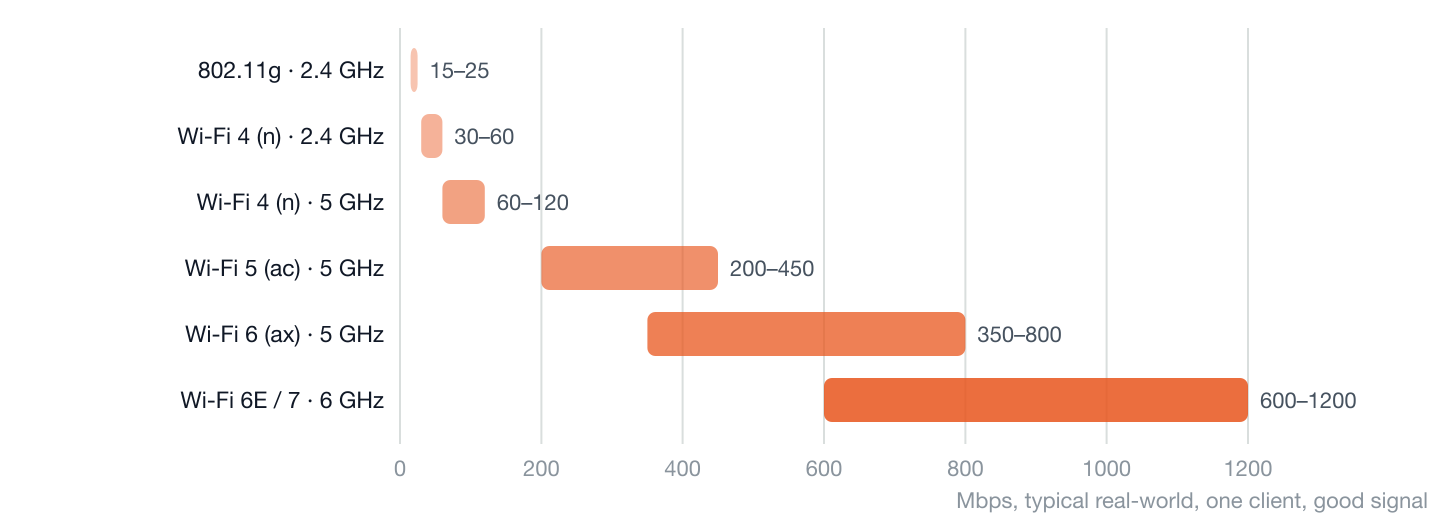
On the same network, the radio is the limit, and the generation of Wi-Fi matters far more than the router brand. The figure shows typical real-world throughput for one client with a good signal; the ranges are wide because channel width and antenna count vary within each generation.
| Factor | Effect | How to check |
|---|---|---|
| Band | 2.4 GHz is long-range but crowded and narrow; 5 and 6 GHz carry several times more | Wi-Fi details on the phone or laptop show the band or frequency |
| Channel width | 20 → 40 → 80 → 160 MHz roughly doubles capacity each step; 2.4 GHz is stuck at 20 or 40 | Router admin page; many default to 80 MHz on 5 GHz |
| Spatial streams | Most phones have two antennas (2×2); a 1×1 device gets half the rate | Device spec sheet |
| Band steering | A router that broadcasts one name may leave a distant phone on 2.4 GHz and never move it back | Toggle Wi-Fi off and on near the router to force re-selection |
| Extenders and mesh backhaul | A single-radio repeater halves throughput (it receives and retransmits on the same channel); mesh with a dedicated backhaul does not | Are you connected to the router or to an extender? |
Fix: move closer, or if your router exposes separate names, join the 5 GHz or 6 GHz one on both devices. If either device is on an extender, connect it to the main router for the transfer.
Check 3: Distance, walls, and the slower device
Wi-Fi speed falls off steeply with distance and with every wall. Signal loss through common materials is roughly 3–4 dB for drywall, 6–10 dB for brick, and 10–20 dB for reinforced concrete or a floor; each 3 dB is half the signal power, and the radio responds by dropping to a slower, more robust rate. Two walls and a floor can turn a 400 Mbps link into 40. 5 GHz suffers more than 2.4 GHz from obstacles, which is why a distant device drifts down to 2.4.
On 2.4 GHz, interference is the other enemy: microwave ovens, Bluetooth, baby monitors and every neighbour's network share three usable channels. On 5 GHz, some channels are shared with weather radar, and a router that detects radar must vacate the channel — a transfer that stalls for a minute at the same time every day is sometimes this.
A transfer runs at the speed of the worse of the two connections: the laptop next to the router does not help a phone two rooms away. In a two-way exchange, one device sends and one receives; both must sustain the rate.
Fix: bring the weaker device into the same room as the router for the duration of the transfer. Line of sight to the router is worth more than any setting.
Check 4: Are you on a relay?
Peer-to-peer tools try to connect the two devices directly. When a firewall or NAT refuses, they fall back to a relay server, which adds a network hop and, if the relay is far away, latency. In ShareDrop.org the status badge says which you got: LAN direct, Internet direct, or Encrypted relay. A relay usually costs latency rather than throughput, since it is bounded by the same uplink as a direct connection (the numbers), but on the same Wi-Fi it means a local transfer is needlessly leaving the building and coming back through the house's uplink, which is the slowest link you own.
Fix: if two devices on the same Wi-Fi land on a relay, the router has “client isolation” (common in hotels and offices) or a VPN is active on one device. Turn the VPN off for the transfer (why VPNs do this), or make a private network with a phone hotspot (the managed-network cases).
Check 5: The device itself
Encrypting, hashing and writing a stream of data is real work. The protocol is not the limit (the ShareDrop.org engine sustains 200+ Mbps on one machine with SHA-256 running on both ends), but a throttled device can be. The usual culprits:
- Thermal throttling. A phone that has been recording 4K video or sitting in the sun slows its CPU and sometimes its radio.
- Battery saver. Low-power modes on both Android and iOS cap CPU and background activity; laptops on battery saver do the same to the Wi-Fi adapter.
- Background tabs and locked screens. Browsers throttle timers in background tabs; a locked iPhone suspends Safari within seconds. Keep the transfer in the foreground on both devices.
- The receiving disk. Writing at 50 MB/s to an old laptop hard drive, or to a phone whose storage is nearly full, can be the real bottleneck for a LAN transfer.
- Antivirus on Windows. Real-time scanning of a file being written in 64 KiB pieces can halve write throughput; it usually finishes after the file closes.
Fix: keep the transfer tab in the foreground, plug in the laptop, let a hot phone cool for a minute, and make sure the receiver has space.
Check 6: Many small files
Ten thousand 50 KB photos transfer slower than one 500 MB video of the same total size. Each file carries per-file overhead (opening, hashing, writing, confirming), and on the receiving side, writing thousands of small files is slow on any disk and slower still when each one is imported into a photo library. This is expected; it is not a network problem.
Fix: for a large archive, zip it first (photos will not shrink, but they will move as one stream — use “store” mode to skip pointless compression).
Setting up a clean test
Before concluding that something is broken, get one measurement under conditions you control. It takes five minutes and ends most arguments.
- Put both devices in the same room as the router, with line of sight to it.
- Confirm both are on the 5 GHz or 6 GHz band, and neither is on an extender.
- Turn off any VPN on both devices for the duration.
- Plug in laptops; take phones out of low-power mode; close other downloads and streams on the network.
- Send one large file (a single video of a gigabyte or more), not a folder of small ones, with the transfer in the foreground on both devices.
- Note the rate once it has settled, after the first ten seconds.
If that number is good, every slower result you see elsewhere is environmental (distance, band, isolation, device state), and the checks above will find which. If it is bad even here, run iperf3 between the same two devices: if iperf3 is also slow, the router or a device's Wi-Fi adapter is the limit; if iperf3 is fast and only the transfer is slow, something on a device is throttling the browser or the disk, and Check 5 is where to look.
Two developments worth knowing about
Wi-Fi 7 adds multi-link operation: a device can use two bands at once and switch between them without dropping, which mostly helps latency and reliability rather than peak rate for a single transfer. Its 320 MHz channels on 6 GHz do raise the ceiling, but only when both devices and the router support them and the band is clear; a Wi-Fi 7 phone on a Wi-Fi 5 router is a Wi-Fi 5 phone.
USB tethering is the wired answer for a phone: connect it to a laptop by cable and enable USB tethering, and the laptop is on the phone's network over a link that runs at hundreds of megabits with no radio involved. For a phone-to-laptop transfer in a hostile Wi-Fi environment it is faster than any hotspot and immune to interference, at the cost of a cable you probably have with you anyway.
Two options that sidestep Wi-Fi entirely
A cable to the router
Gigabit Ethernet delivers about 940 Mbps of real throughput, every time, with no interference, no walls and no band steering; 2.5 Gbps ports are becoming common. If the receiving laptop or desktop can be wired, the transfer becomes limited by the wireless side alone, and if both can be wired, by the disks. For anyone who moves large files regularly between two fixed machines, a cable to the router is the cheapest upgrade that exists.
A phone hotspot, on purpose
When two devices are together but the local Wi-Fi is slow, isolated or absent, a phone hotspot gives them a private network of their own. Its speed is set by the phone's Wi-Fi radio rather than by the internet plan: a recent phone with a 5 GHz hotspot option delivers 100–300 Mbps between devices connected to it, more than most café networks. Enable the 5 GHz band in the hotspot settings if offered; the 2.4 GHz default is chosen for compatibility, not speed. A transfer between two devices on a hotspot never touches mobile data, so it costs nothing from the plan.
Summary: symptom to fix
| What you see | Most likely | First thing to try |
|---|---|---|
| 2–6 MB/s to a device in another city | Uplink-bound (Check 1) | Nothing; that is your upload speed |
| 3–7 MB/s on the same Wi-Fi | 2.4 GHz or an extender (Check 2) | Move both devices near the router |
| Fast, then slow, then fast | Interference or DFS channel change (Check 3) | Change router channel; avoid 2.4 GHz |
| Badge says relay on the same Wi-Fi | Client isolation or VPN (Check 4) | Hotspot, or disable VPN |
| Fast for a minute, then drops | Thermal throttling or screen lock (Check 5) | Cool down, keep the screen on |
| Slow only for folders of small files | Per-file overhead (Check 6) | Zip in store mode |
Four cases, worked through
1. The hotel
3 MB/s sending a 2 GB video from a phone to a laptop “on the same Wi-Fi.” The badge says Encrypted relay: the hotel network isolates clients, so the transfer is going out to the internet and back, bounded by the hotel's shared uplink. Turning on the phone's hotspot and joining the laptop to it gives both devices one private network; the badge flips to LAN direct and the same file moves at 40 MB/s.
2. The far bedroom
5 MB/s between a laptop in a bedroom and a desktop by the router, on a Wi-Fi 6 network that speed-tests at 600 Mbps in the living room. The laptop's Wi-Fi details show 2.4 GHz: two walls away, it drifted down and band steering never brought it back. Toggling Wi-Fi off and on next to the router puts it on 5 GHz; carrying it back to the bedroom keeps it there at 25 MB/s — five times faster, same room, same router.
3. The corporate laptop
1 MB/s sending from an office laptop to a colleague at home, with the badge on Encrypted relay and the corporate VPN connected. The VPN routes all traffic through the company's gateway, which both blocks UDP and caps per-client bandwidth; the relay is reachable only over TCP. Disconnecting the VPN for the transfer (policy permitting) gives Internet direct at the office's full uplink. If policy does not permit, the honest answer is that 1 MB/s is what the company's network allows.
4. Twenty thousand photos
A phone-to-laptop transfer of a whole camera roll averages 6 MB/s on a network where a single video moves at 30. Nothing is wrong with the network: the receiver is creating twenty thousand files and hashing each, and the per-file cost dominates. Selecting the same photos as a single zip on the phone, or moving the library over a cable, is the right tool (when a cable wins).
5. The USB dock
A desktop's Wi-Fi drops to 2 MB/s every time an external drive is plugged into the USB 3 hub next to it. This is a documented effect: USB 3 cables and connectors radiate noise in the 2.4 GHz band, and a poorly shielded hub sitting next to a laptop's antenna can drown the signal. Moving the hub a metre away, or moving the Wi-Fi connection to 5 GHz, restores the rate. If a transfer slows down exactly when you plug something in, this is it.
6. Phone to phone on mobile data
Two people in different cities send a 500 MB video phone-to-phone on cellular. The badge reads Encrypted relay on both (expected, because both phones are behind carrier-grade NAT), and the rate is about 4 MB/s, which is the sending phone's upload. Nothing here is fixable except by patience or Wi-Fi: it is the realistic case for cross-country phone transfers, and the relay is doing exactly its job. Had both carriers offered IPv6, the badge might have read Internet direct; the rate would have been the same.
Further reading
- Wi-Fi Alliance: Discover Wi-Fi: the generation names (Wi-Fi 4 through 7) and the bands each one uses.
- RFC 8831: WebRTC Data Channels, the SCTP-over-DTLS transport whose congestion control sets the pace on a clean link.
- MDN: RTCPeerConnection.getStats(): the connection statistics that the path badge and any throughput measurement are read from.
- RFC 8445: Interactive Connectivity Establishment (ICE), which decides whether a transfer stays on the LAN, crosses the internet, or uses a relay.